Best practices
Follow these best practices to give your users a smooth audio experience in your integration. For a quick reference, see the Audio setup checklist.
Enable audio
-
Since browsers prevent audio from playing without user action, add an easy to identify "enable audio" button that your users can click, which calls the Video SDK
startAudiofunction. Be sure to tie this to a real user action, like a button click, so audio initiates successfully within the browser.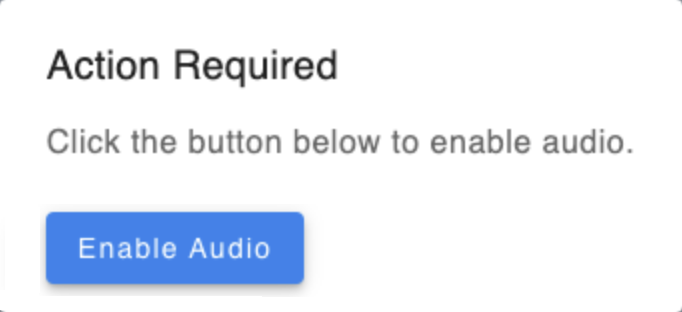
Audio initialization flow
The diagram below summarizes the correct order for starting audio, satisfying the browser gesture requirement, and handling devices through the session lifecycle.
User joins session
        |
        v
Show an "enable audio" button     (do NOT call startAudio() automatically)
        |
        v
User clicks the button            (this is the required user gesture)
        |
        v
Call stream.startAudio()
        |
        +--> Browser prompts for microphone permission (first time only)
        |
        v
Permission granted? --- no --> Listen for device-permission-change and
        |                       prompt the user to grant permission again
        | yes
        v
Audio connects with the selected microphone and speaker
        |
        v
Audio plays? --- no (auto-play-audio-failed) --> Prompt the user to click the page
        | yes
        v
In session: handle device-change, current-audio-change,
            and active-media-failed events for the rest of the lifecycle
Show status
-
Animate the microphone when users speak. This helps users visualize that their mic is capturing their voice successfully.

-
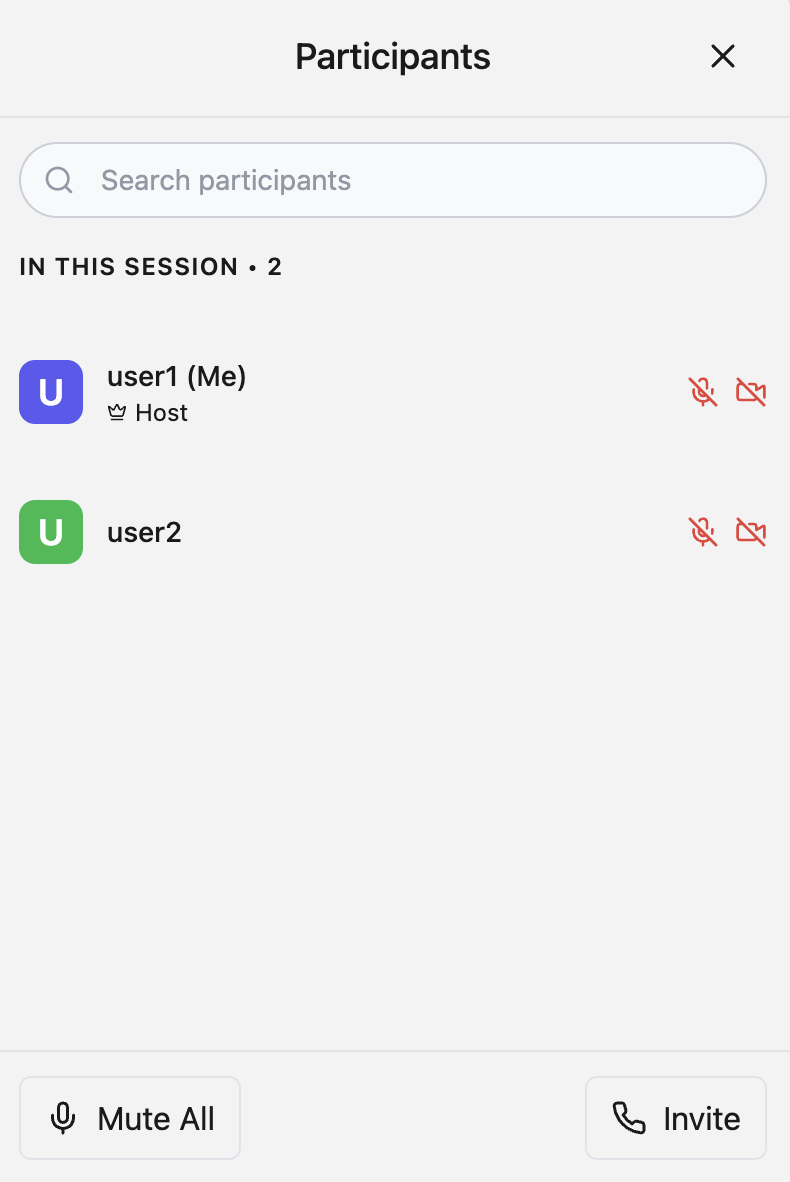
Show users' microphone statuses so everyone can see that a user is muted, unmuted, or that they have not "enabled audio".
-
Highlight the active speaker. If you have multiple users in the session, use the active speaker event to spotlight them in your UI, or border their video so everyone can visualize who is speaking.
Audio device options and status
-
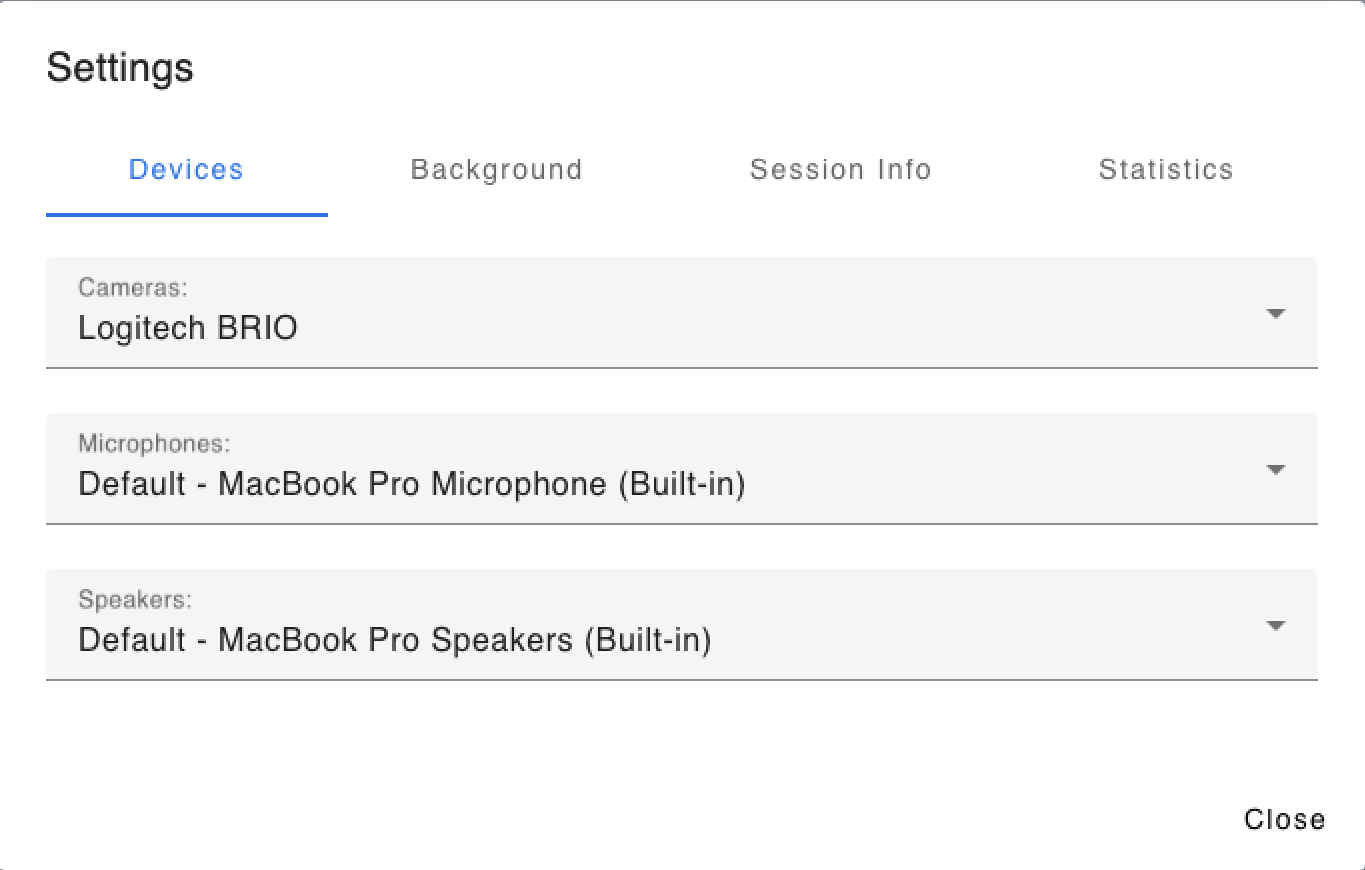
Provide the option to choose a microphone and speaker (if supported in the browser, see caniuse.com for the AudioContext API: setSinkId). This allows the end user to switch to their headphones or choose their desired microphone device.
-
Add support for hot plugging and unplugging. Use the
device-changeevent listener to listen for when a microphone is plugged in or unplugged. This can be useful to notify the user if their headphones run out of battery, loose connection, or for easily switching to a new device when one is connected or plugged in. Seedevice-changein event handling for details. -
Use the
current-audio-changeevent to display a message to ask the user to reconnect audio if they left audio for any reason, such as to take a phone call or play music. If they use another app for audio, it disconnects the SDK from audio and they need to reconnect. The user may not know this unless you tell them. Seecurrent-audio-changein event handling for details.
Permission changes and errors
- Handle system and browser permission errors, for example, if the end user has not granted camera access within the browser or webpage, or they have denied access, display the error and a call to action to the end user. You can also show a notification to the other users that this user is having trouble with allowing their camera to be enabled.
- If session audio and video stop working due to a permission change, for example, perhaps the user disabled audio permission in Chrome, you can use the
permission-changeevent to detect this and message the user to authorize permission again.
Support for Chrome <permission> element
Zoom supports the <permission> element in Chrome to give users contextual control over access permissions. Use it to enable the user to trigger the microphone and camera permission prompt in the browser by clicking it (it appears as a button).
<style>
    permission {
        background-color: lightgray;
        color: black;
        border-radius: 10px;
    }
</style>
<permission type="geolocation"></permission>
This requires the origin trial Trial for Page Embedded Permission Control - Cam/Mic/Geolocation. See the following resources for details.
- Rethink web permissions: Seamless user control of powerful capabilities with Chrome's new proposed
<permission>element - The
<permission>element - Seamless user control of powerful capabilities
Audio setup checklist
Use this checklist to confirm your audio integration follows the recommended flow.
- Provide an "enable audio" button instead of starting audio automatically on join.
- Call
stream.startAudio()only from a user gesture, like a click or tap. - Handle the
auto-play-audio-failedevent and prompt the user to click the page. - Let the SDK use the system default devices, or pass a
microphoneIdandspeakerIdtostartAudio(). - Present microphone and speaker lists so users can switch devices.
- Refresh your device lists in the
device-changehandler. - Handle permission changes with
device-permission-change. - Prompt users to reconnect when
current-audio-changeoractive-media-failedfires. - Use
muteAudio()andunmuteAudio()for muting, and reservestopAudio()for fully leaving audio.
Related references
- Audio core features - start, stop, mute, and switch audio devices.
- Handle events - audio, device, and permission events.
- Error codes - audio exceptions thrown by
startAudio. Streamclass reference - full audio method reference.